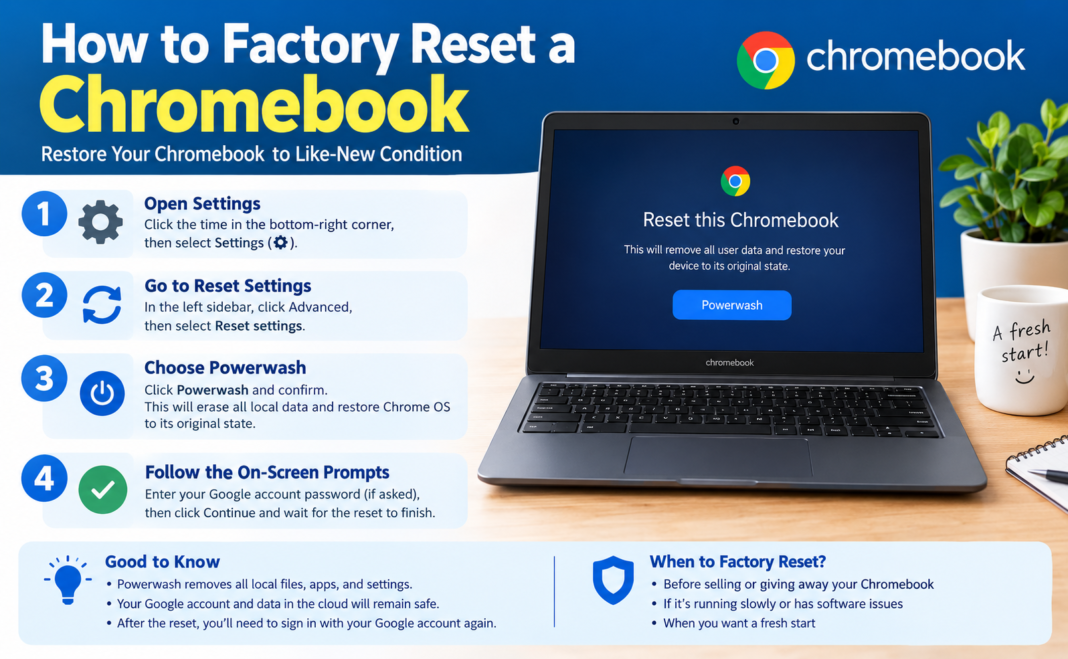


Whether your Chromebook has started running slow, you’re getting ready to sell or donate it, or you’re just dealing with persistent glitches that won’t go away, a factory reset — known on Chrome OS as a “Powerwash” — is often the cleanest fix. It wipes the device back to its out-of-the-box state, removing all local files, accounts, settings, and installed apps. This guide walks through everything you need to know before, during, and after the process.
What Is a Powerwash, Exactly?
On Chrome OS, “Powerwash” is the built-in term for a factory reset. It erases everything stored locally on the device — downloaded files, saved settings, installed Android apps, and any signed-in Google accounts — and restores the Chromebook to the same state it was in when it first came out of the box. Because Chromebooks are designed to be cloud-first, most of what makes your setup “yours” (bookmarks, extensions, Drive files) lives in your Google account rather than on the device itself, which makes Powerwash a much less disruptive process than a full reset on a traditional Windows or Mac laptop.
When Should You Powerwash a Chromebook?
A few common situations call for a factory reset:
- Persistent performance issues. If your Chromebook has become sluggish, freezes often, or shows unusual behavior that survives a normal restart, a Powerwash can clear out corrupted settings or misbehaving extensions.
- Preparing to sell, donate, or hand off the device. Wiping all personal data and accounts is essential before the Chromebook changes hands, so the next user doesn’t have access to your files or Google account.
- Fixing account or sync issues. Occasionally, sign-in or sync problems are easiest to resolve with a clean slate.
- You’re prompted to. Chrome OS itself will sometimes display a “Reset this Chrome device” message when it detects a deeper software issue that a simple restart can’t fix.
If you’re troubleshooting a slow or glitchy Chromebook, it’s worth trying a few lighter steps first — restarting the device, disabling extensions one by one to isolate the culprit, or confirming you’re on the Stable update channel under Settings > About Chrome OS. A Powerwash is more effective as a last resort once these smaller fixes haven’t solved the problem.
Before You Start: Back Up Your Data
Because a Powerwash erases all local data, it’s important to know what will and won’t survive the process:
- Google Drive files are already stored in the cloud and will be there when you sign back in — no action needed.
- Chrome bookmarks, extensions, and browser settings sync automatically to your Google account and will restore themselves after setup.
- Android apps from the Play Store will need to be reinstalled, though most app data tied to your Google account is generally preserved.
- Files in the Downloads folder are stored locally and are not backed up automatically — manually move anything important to Google Drive or a USB drive first.
- Linux (Crostini) files and containers, if you use Chrome OS’s Linux development environment, are also stored locally and will be wiped — export anything you need before proceeding.
Once you’ve confirmed your important files are safely backed up, you’re ready to reset.
Method 1: Powerwash From Settings (If You Can Log In)
This is the standard method if your Chromebook is working well enough to sign in normally.
- Click the clock in the bottom-right corner of the screen to open the quick settings panel.
- Click the gear icon to open Settings.
- Navigate to Advanced (or System preferences, depending on your Chrome OS version) in the left sidebar or at the bottom of the page.
- Find the Reset settings or Powerwash section and click Reset or Powerwash.
- A dialog box will explain that the device needs to restart before the process can begin. Click Restart.
- After the Chromebook reboots, you’ll see a final confirmation screen. Click Powerwash, then Continue to begin.
- The device will wipe all local data — this typically takes just a minute or two — and then reboot into the initial setup screen, exactly as if it were brand new.
Method 2: Powerwash From the Login Screen (Without Signing In)
If you can’t or don’t want to sign in first — for example, if you’re resetting a device before giving it to someone else, or troubleshooting a sign-in problem — you can trigger a Powerwash directly from the login screen.
- At the Chromebook’s sign-in screen, press and hold Ctrl + Alt + Shift + R.
- A reset screen will appear with the option to restart.
- Click Restart.
- When prompted, select Powerwash, then click Continue.
- The screen will go dark briefly while the device wipes itself, then restart into the initial setup screen.
Method 3: Recovery Mode Reset (For Locked or Unresponsive Devices)
If your Chromebook won’t boot normally, is stuck at a “Chrome OS is missing or damaged” type screen, or you need to reinstall the operating system entirely, a recovery mode reset is the deeper option. This method typically requires a recovery USB drive created using the Chromebook Recovery Utility from another computer, and the exact key combination to enter recovery mode can vary slightly by manufacturer (commonly Esc + Refresh + Power). Because this process is more involved and device-specific, it’s worth checking your Chromebook manufacturer’s support page for exact instructions before attempting it, especially if the device isn’t behaving predictably.
What Happens After the Powerwash
Once the reset completes, your Chromebook will boot into the same “Welcome” setup screen you saw the very first time you turned it on. From here, you’ll need to:
- Connect to a Wi-Fi network.
- Sign in with your Google account (or a new one, if you’re setting the device up fresh).
- Wait for your synced settings, bookmarks, and extensions to restore automatically.
- Reinstall any Android apps you had from the Play Store.
- Re-copy any local files you backed up beforehand from Google Drive or a USB drive.
A Note on School or Work-Managed Chromebooks
If your Chromebook is enrolled in a school or workplace’s device management system, a Powerwash may not fully remove enterprise policies — the device is often designed to automatically re-enroll under the same management account after the reset, restoring institutional restrictions and settings. This is expected behavior for managed devices and isn’t a sign that anything went wrong; it’s simply how Chrome OS enterprise enrollment is designed to work. If you’re trying to remove a Chromebook from an organization’s management entirely, you’ll need to contact whoever administers that account rather than relying on Powerwash alone.
Final Thoughts
A Powerwash is one of the simplest, most effective troubleshooting tools available on a Chromebook, largely because the cloud-first design of Chrome OS means most of what matters — your files, settings, and extensions — is never really at risk. Whether you’re clearing out a sluggish machine, preparing it for a new owner, or starting fresh after a stubborn glitch, the process takes just a few minutes and gets you back to a clean, reliable setup with minimal hassle.