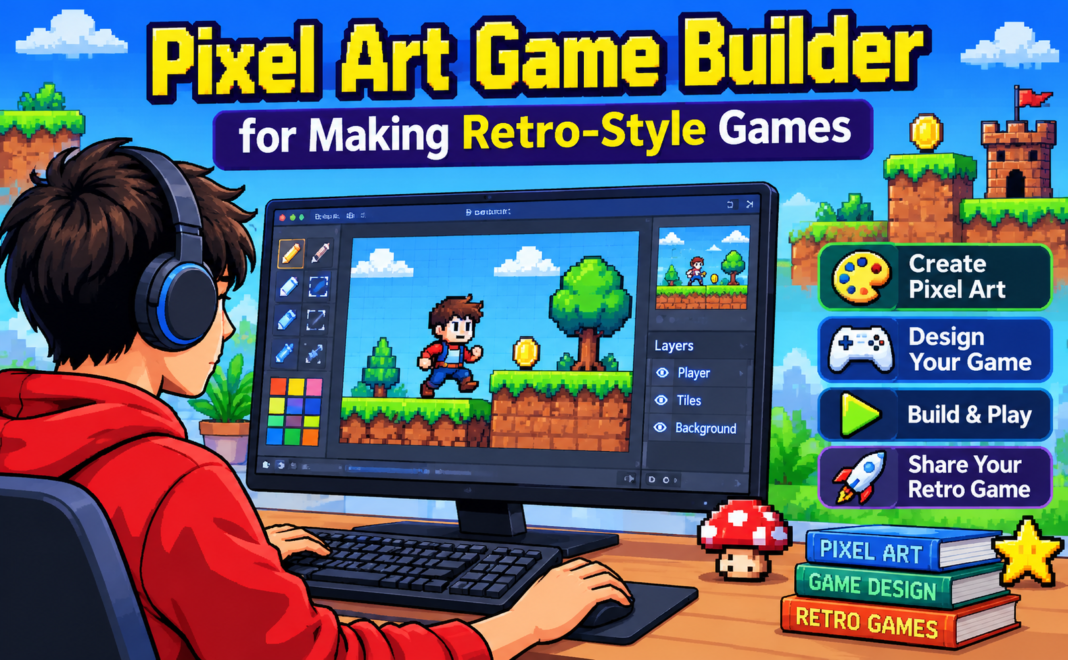


Pixel art games never really went away. From indie hits to mobile puzzlers, the blocky, colorful look of 8-bit and 16-bit games keeps finding new fans. The good news for aspiring creators is that you no longer need a team or years of programming experience to build one. A modern pixel art game builder lets you draw sprites, design levels, and add gameplay logic in one place, often without writing a single line of code.
This guide explains what a pixel art game builder is, which features matter most, which tools beginners can start with, and how to go from a blank screen to a playable retro game.
What Is a Pixel Art Game Builder?
A pixel art game builder is a tool, or a combination of tools, that helps you create games built around low-resolution, pixel-based graphics. Some are all-in-one engines where you draw art, build maps, and set up game rules inside one program. Others are specialized editors for one part of the process, such as sprite drawing or level design, which you then connect to a game engine.
The retro look comes from deliberate limits: small sprite sizes (commonly 16×16 or 32×32 pixels), a restricted color palette, and simple animations with only a few frames. These limits are not a weakness. They make game development faster, because a small sprite takes minutes to draw instead of hours, and they give your game a consistent, recognizable style.
Key Features to Look For
Not every tool suits every project. Before you pick one, check for these features:
A built-in sprite editor. Being able to draw and animate pixel art directly inside the builder saves time and keeps your workflow simple.
Tilemap support. Most retro games are built from repeating tiles, such as grass, bricks, and water. A good builder lets you paint levels using a tile grid instead of placing every object by hand.
Palette control. Limiting yourself to 4, 16, or 32 colors helps you reach an authentic retro feel. Look for tools that let you load or create custom palettes.
Crisp scaling. Pixel art must be scaled up using nearest-neighbor filtering, otherwise it looks blurry. A good builder supports integer scaling so every pixel stays sharp on modern screens.
Visual or beginner-friendly logic. Drag-and-drop events, behaviors, or simple scripting let you add movement, enemies, and scoring without deep coding knowledge.
Export options. Decide early where you want your game to run: web browser, PC, mobile, or even a retro handheld format. Make sure your builder can export there.
Popular Tools to Start With
There is no single best option, because each tool targets a different kind of creator. These are well-known choices, and you should check each one’s current price and features on its official site before committing.
Aseprite is one of the most popular dedicated pixel art editors. It focuses on drawing and animation, with layers, frames, and palette tools. It is not a game engine, so you pair it with one.
Piskel is a free, browser-based sprite editor. It is a handy way to start drawing and animating pixel art without installing anything.
GB Studio is a free, drag-and-drop tool for making games in the style of the original Game Boy. It is a strong pick if you want a very authentic, limited-palette look and prefer a visual workflow.
GDevelop is an open-source, no-code game engine that uses an event system instead of scripts. It handles 2D games well and works nicely with pixel art assets.
Construct is another visual, event-based 2D engine popular with beginners and used for browser and mobile games.
Godot is a free, open-source engine with strong 2D support, including pixel-perfect rendering options. It has a learning curve because it uses its own scripting language, but it offers a lot of freedom.
PICO-8 is a “fantasy console” with fixed limits, including a small screen and a 16-color palette. It forces creativity and is a classic choice for tiny retro games.
Pixel Game Maker MV is a dedicated engine aimed at pixel art action games, popular with creators who want a ready-made starting point for platformers.
Tiled is a free map editor many creators use to design tile-based levels before importing them into an engine.
Step-by-Step: Making Your First Retro Game
Here is a simple workflow that works with almost any of the tools above.
1. Start with a tiny idea. Choose one mechanic, such as jumping, collecting coins, or dodging enemies. Small projects get finished, and finishing is how you improve.
2. Pick your limits first. Decide your sprite size, screen resolution, and color palette before you draw anything. Free palette libraries are available online, and picking one removes hours of color decisions.
3. Draw your core sprites. You only need a player, one or two enemies, a few tiles, and a simple item. Give the player two to four frames each for idle and walk animations.
4. Build one level. Use a tile grid to paint a short level. Keep it simple, and test it often.
5. Add the rules. Set up movement, collisions, scoring, and a win or lose condition. In an event-based builder, this means creating simple “when this happens, do that” rules.
6. Add sound. Retro games depend on sound. Short, chiptune-style effects for jumping and collecting make a game feel finished. Many free tools can generate these.
7. Playtest and polish. Ask a friend to play without instructions and watch where they struggle. Small touches, such as screen shake, particle effects, and a title screen, add a lot of personality.
8. Export and share. Publish to a web page, a game-sharing site, or a storefront so people can actually play your game.
Tips for Better Pixel Art and Retro Design
Use fewer colors than you think you need. A tight palette makes a game look more cohesive than a wide one.
Keep animation simple. Two or three frames of a walk cycle can feel just as lively as ten.
Stay consistent. Do not mix pixel sizes. If your character uses 1×1 pixels, your background should too.
Study classic games. Look at how older console games handled readability, enemy design, and level pacing. You can learn a lot from their constraints.
Avoid rotating or resizing sprites at odd angles. This breaks the pixel grid and creates a messy look. Redraw the sprite instead.
Common Mistakes Beginners Make
Many first-time creators try to build a huge game, such as an open-world RPG, as their first project. Start with something you can finish in a week or two. Another common mistake is spending too long on art before testing gameplay. A rough placeholder sprite is enough to find out whether your game idea is fun. Finally, some beginners ignore scaling settings and end up with blurry visuals, so always check that your game renders pixels sharply.
Final Thoughts
Making a retro-style pixel art game is one of the most approachable ways to start game development. The limits of the style keep the workload manageable, and today’s builders remove most of the technical barriers. Pick a simple tool, set a small goal, and build something playable. Your first game will not be perfect, but it will teach you more than any tutorial, and each project after it will get faster and better.